Digital Marketing
What Is Answer Engine Optimization (AEO)?

Plenty of businesses want to migrate WordPress to Webflow without losing SEO, and with good reason. Moving platforms is the moment most sites accidentally throw away years of rankings. Usually it isn't Webflow's fault. It's the details: URLs that change without redirects, missing meta data, broken internal links, images that lose their alt text. This guide walks through the process we use at Asctro, step by step, so your new Webflow site keeps the traffic your old WordPress site earned.
If you're still deciding whether to switch at all, read our Webflow vs WordPress comparison first. This article assumes you've decided to move.
Search engines rank URLs, not websites. When a URL disappears, every link, ranking signal and bookmark pointing at it goes nowhere unless you tell search engines where the content has moved. Google's own guidance on site moves with URL changes recommends mapping old URLs to new ones and using server-side permanent (301) redirects.
The most common causes of lost traffic after a migration are:
/post-name/ to /blog/post-name/ with no redirectsEvery step below is designed to stop one of these.
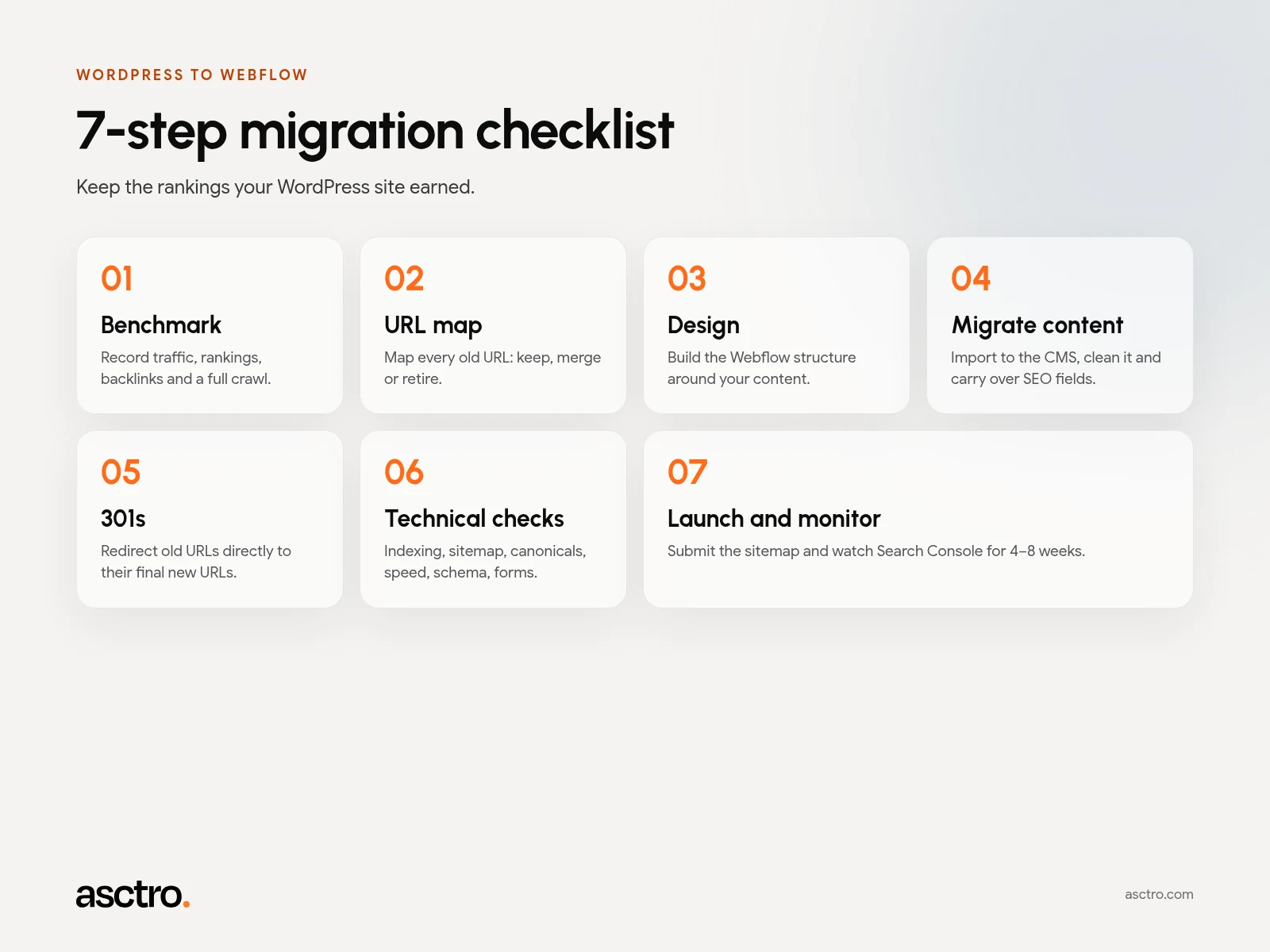
You can't protect what you haven't measured. Before planning the new site, record:
Export the last 12 months of pages and queries from Google Search Console, and landing-page sessions from your analytics. Note which pages bring in the most organic traffic and conversions. These are your protected pages.
Export the pages that have external links pointing at them (Search Console's Links report is a free starting point). Every one of these URLs needs a redirect.
Crawl the live WordPress site with a crawler such as Screaming Frog. Save every URL, status code, title, meta description, H1, canonical and image alt text. This becomes your master spreadsheet.
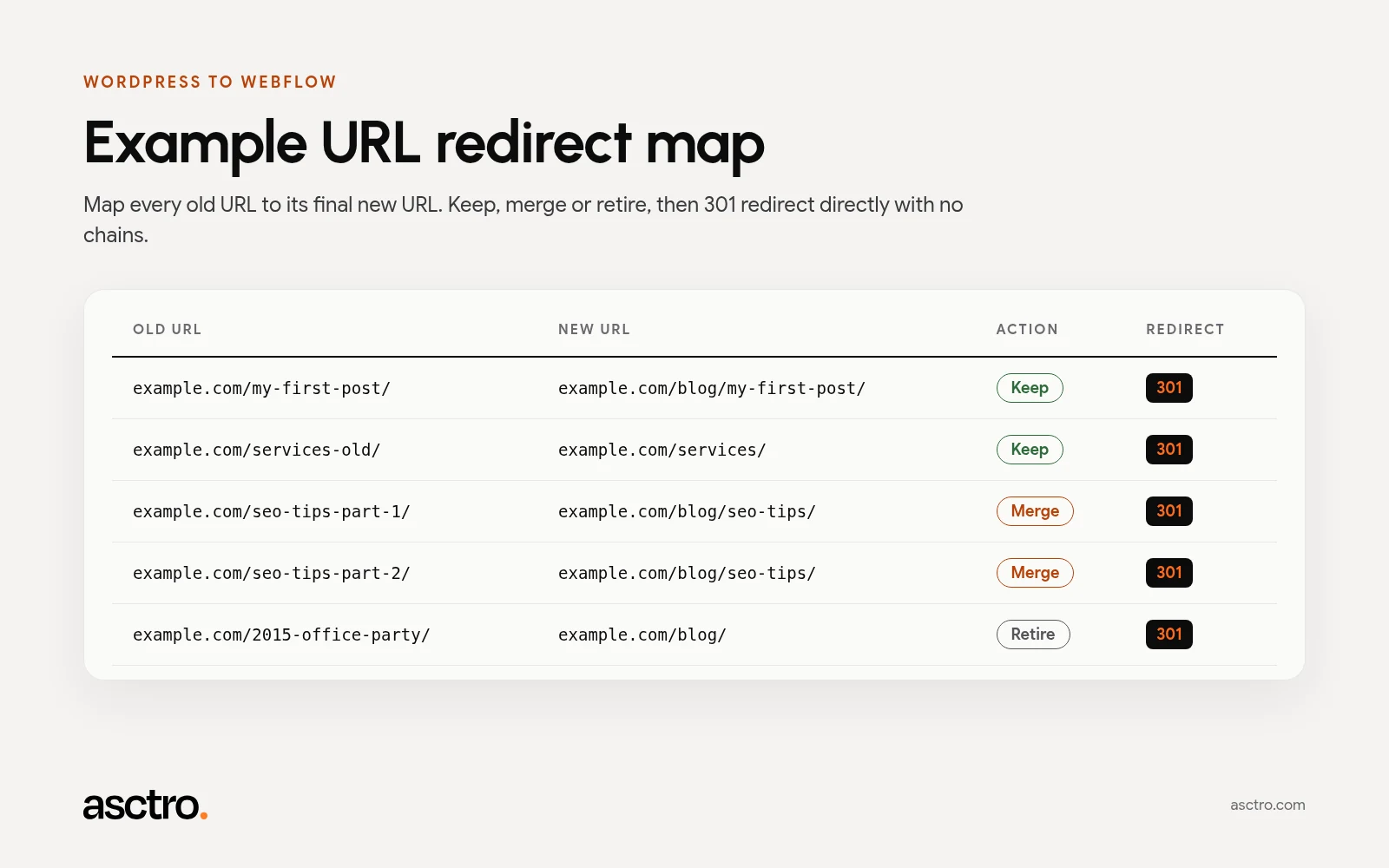
This is the most important deliverable in the whole migration.
The safest redirect is the one you don't need. Webflow lets you set slugs for static pages and CMS items, so many URLs can stay exactly the same.
Webflow CMS items live under a collection path. For example, blog posts sit under a folder such as /blog/ or /blogs/. WordPress posts often live at the root (/my-post/), so they usually need redirects to the new collection path. Map each one in your spreadsheet.
A migration is a good moment to clean up. For each URL, choose:
Don't retire pages that get traffic or have backlinks unless they have a genuinely relevant redirect target.
WordPress creates URLs you may never have noticed: category and tag archives, author pages, /page/2/ pagination, attachment pages and feed URLs. Decide what happens to each.
Build the new structure from what's working, not from a blank template.
This is where design and SEO meet. A website redesign done alongside a migration should improve how the content is organised, not just how it looks.
Export posts and pages to CSV. Several tools and plugins can convert WordPress content into a CSV that matches your Webflow collection fields.
Webflow supports CSV import into CMS collections. Map each column to the right field: name, slug, body, SEO title, meta description, featured image, category, author.
WordPress content often carries shortcodes, inline styles, page-builder markup and broken embeds. Check imported rich text carefully, especially:
/wp-content/ URLsTitles, meta descriptions, canonicals and Open Graph data should come across exactly, or be improved on purpose. Don't let them fall back to defaults.
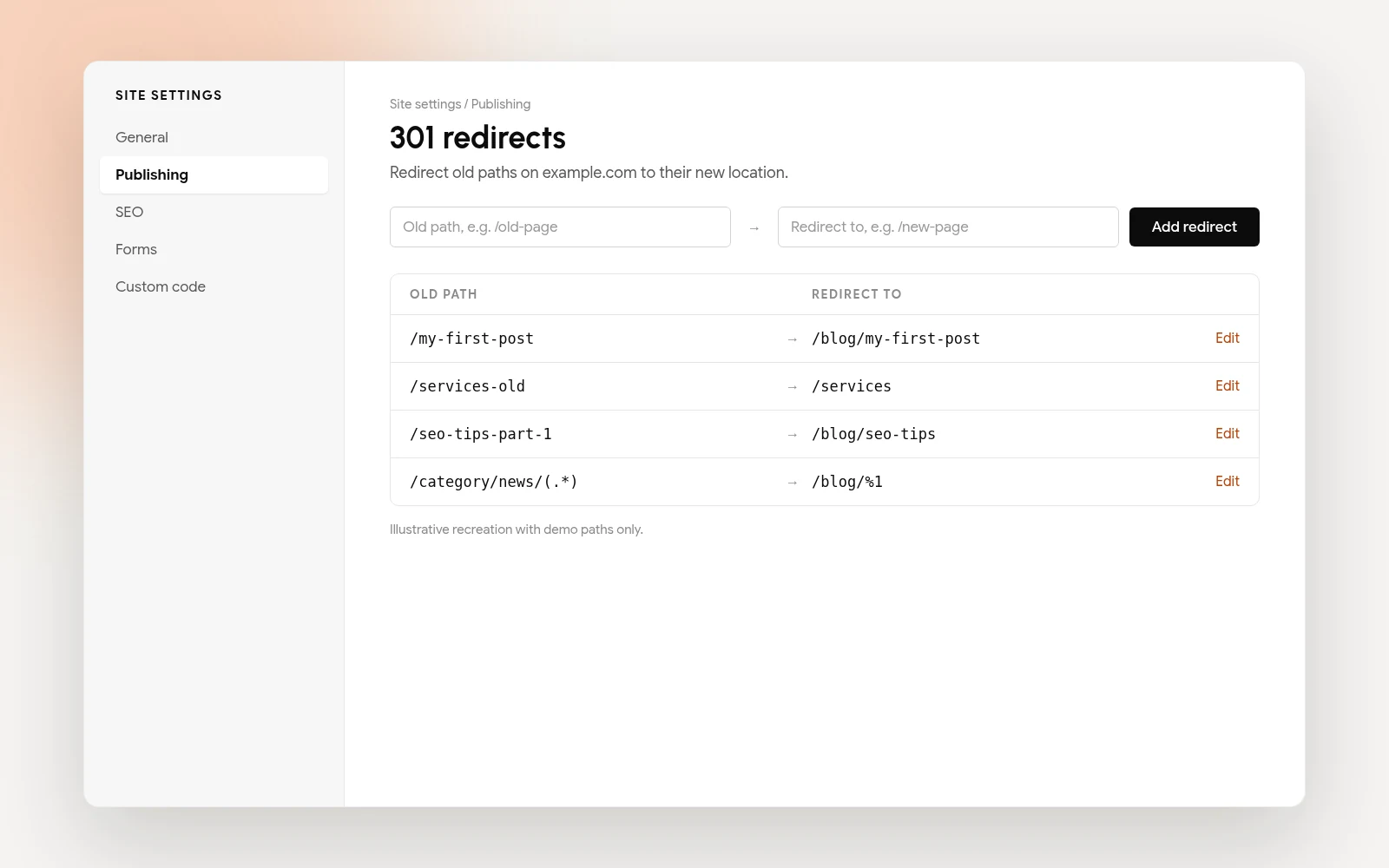
Webflow lets you add 301 redirects in Site settings → Publishing → 301 redirects. You can add rules one at a time, and Webflow supports pattern-based rules for whole folders.
Best practice:
Run through this list on the Webflow staging site:
Google's guidance is that there's no special trick for appearing in AI Overviews or AI Mode. Normal SEO fundamentals apply: crawlability, internal links and clear text content. A clean migration protects both your classic rankings and your chances of being cited in AI answers. Our AEO service builds on that foundation.
Some ranking movement is normal while Google processes the change. Track:
If a key page drops sharply, check its redirect, content and internal links first. Those are the usual causes.
It depends on content volume and how much redesign is involved. A small site with a few dozen URLs can move within a normal project timeline. Sites with hundreds of posts, complex taxonomies or custom post types need more planning, cleanup and QA. The URL mapping and content cleanup usually take longer than the build itself.
Migration is usually priced as part of a Webflow build, or as an addition to it. In an October 2026 review of Webflow agency pricing by Octo Agency, one provider estimated migration at 20–40% on top of a comparable new build. Our guide to Webflow website cost in the UK covers budgeting in more detail.
Asctro is a London studio founded in 2016 that builds on both Webflow and WordPress, so we know both sides of a migration. Our Webflow development and WordPress development teams handle the build. Our SEO team handles redirect mapping, technical checks and post-launch monitoring.
We'll audit your WordPress site and send you a migration plan, including the URL map. Talk to Asctro.